



Terminal UI
A live, keyboard-driven dashboard over your workstations, configs, bindings, SSH keys, and grants.
rl tui opens a full-screen, keyboard-driven dashboard over your
workstations and the resources around them. If you have used
k9s for Kubernetes, it will feel immediately familiar:
tabs across the top for each kind, a live table in the middle, and a footer that
always shows the keys available right now.
It is a convenience layer, not a separate control path. The TUI is a pure client
of the same resource API every other command uses, so anything you can see here
you can also reach with get,
describe, and friends. Actions in the TUI do
not reach around the API either: starting a workstation or toggling a share edits desired
state and lets the control loop apply it, exactly as a rl apply would.
The 60-second tour
Launch it from any terminal:
rl tui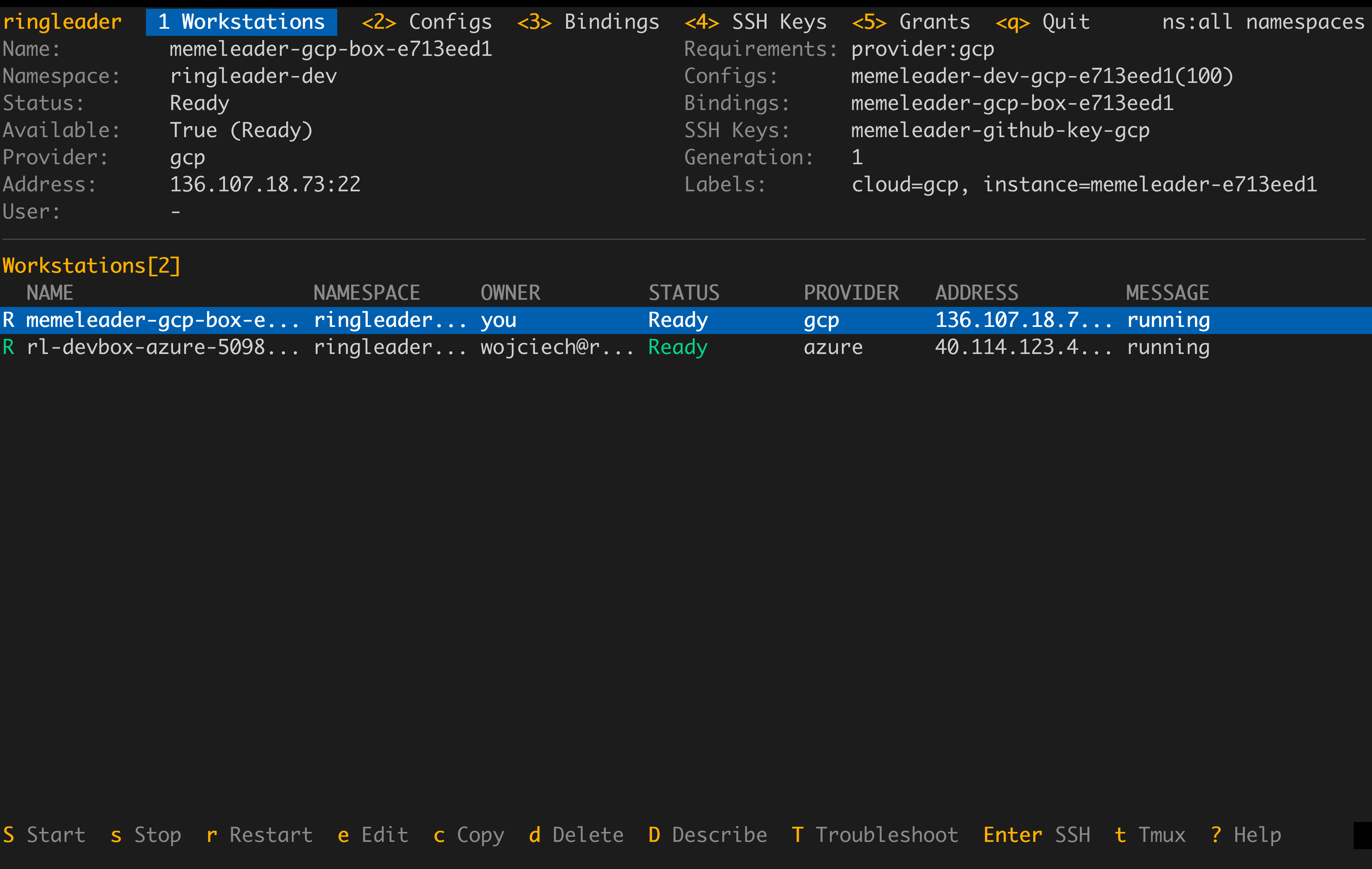
You land on the Workstations tab. The pane at the top is a live summary of the selected row (its status, address, and everything attached to it), and it follows your selection as you move. From here, four moves get you most of the value:
- Switch tabs with the number keys:
1Workstations,2Configs,3Bindings,4SSH Keys,5Grants. Each tab is a table of that kind. - Move with the arrow keys or
j/k, and jump to the top or bottom withg/G. The footer always lists the actions for whatever is selected. - Act on the selected row. On a workstation,
Sstarts it,sstops it,Enteropens an SSH shell, andDshows a full describe view. The footer shows these keys, and?lists the keys for the current tab.Ctrl+Plists every command you can run here and runs the one you pick. - Quit with
q.
That is enough to watch your fleet and drive the common lifecycle actions. The table refreshes on its own, so a workstation you start climbs through its phases in front of you without a manual reload.
How the tables stay current
--refresh. While a workstation is changing phase, the
Workstations tab refreshes every two seconds. R or Ctrl+R refreshes at once.
See Live updates and federation.Launching
rl tui                       # all namespaces you can see
rl tui -n team-blue          # scope to one namespace
rl tui --theme dark --refresh 3| Flag | Description |
|---|---|
--theme <theme> | Color theme: auto (default), dark, light, basic. |
--refresh <seconds> | How often the tables refresh, in seconds (default 5). |
-n, --namespace <ns> | Start scoped to one namespace. |
-A, --all-namespaces | All namespaces (the default; equivalent to -n ""). |
--as <subject> | Impersonate a subject (requires the right to do so). |
--home <dir> | Data directory (default $RINGLEADER_HOME, else ~/.ringleader). |
Where to go next
The pages below take you from everyday use into the corners. Read them in order for a full tour, or jump straight to what you need.
- Getting aroundMove around the TUI with tabs, selection, namespace and owner scope, and themes, all working the same on every view.
- Managing resourcesPer-view actions: start and stop workstations, edit and copy and delete, toggle bindings and shares, and create with the wizard.
- InspectingThe three read-only views for looking closely at one object: describe it, troubleshoot it, and see what relates to it.
- Filtering and searchThe / filter: substring search, field:value restrictions, and how it composes with namespaces and owner scope.
- Live updates & federationHow the TUI keeps its tables current on its own, and shows every control plane you are logged into in one view.
- Keybinding referenceEvery key the TUI binds, grouped by scope: global navigation and the per-view actions.